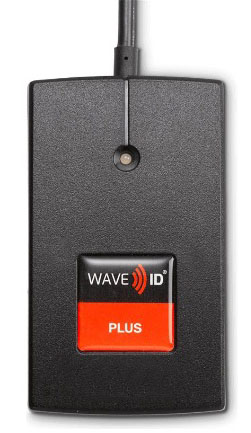
Your rfIDEAS WAVE ID® USB proximity reader sends the raw card serial — like E00401504A675405 — but your time clock, ERP or access application expects the employee number, like 1223. Bill Redirect with the free Keyboard Wedge Capture plugin intercepts the card number and replaces it automatically using a Search and Replace lookup table — before it reaches your application.
Total setup time: about 15 minutes. The plugin is free — you only need a Bill Redirect license ($45 CAD per computer, trial available).
Download and install Bill Redirect on the Windows computer where your WAVE ID® reader is connected. This is the engine that filters and routes the data.
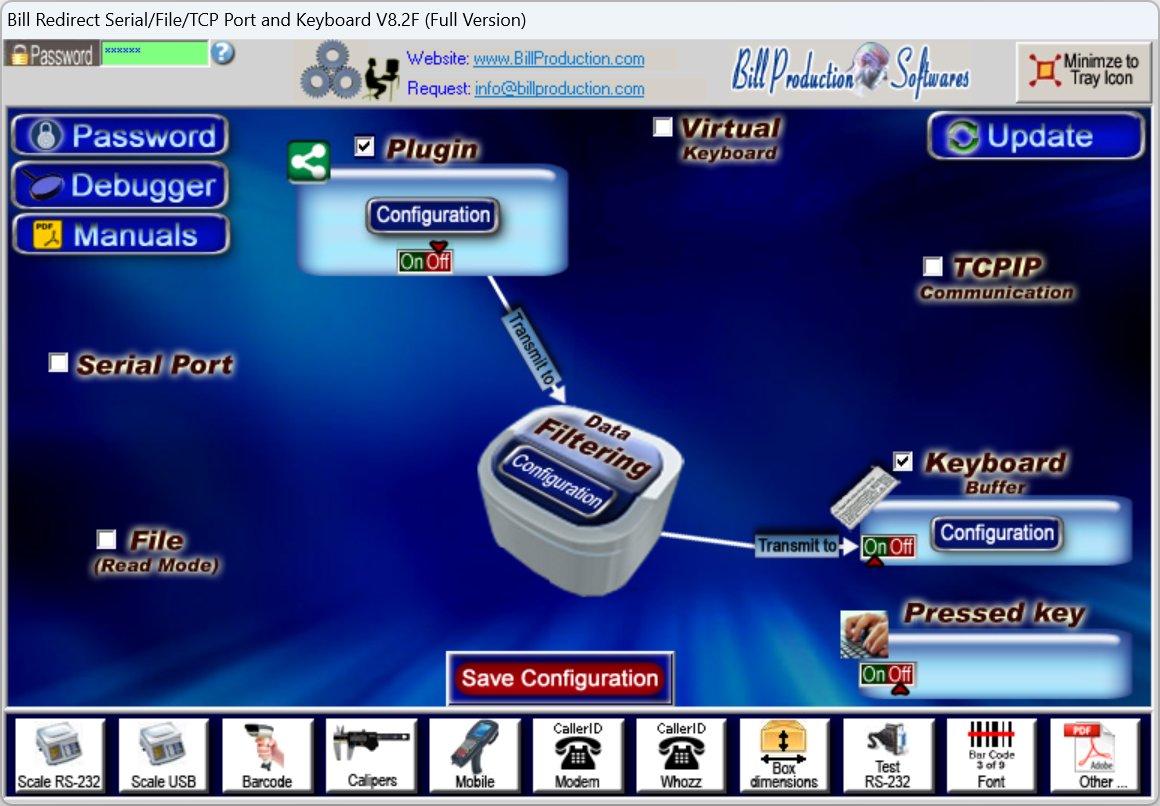

Download the free plugin and extract it into the Bill Redirect folder. This plugin intercepts the USB HID keyboard data sent by the WAVE ID® reader before it reaches the active Windows application.
Launch Bill Redirect, then start the Keyboard Wedge Capture plugin. In the plugin, select your WAVE ID® reader in the USB device list and click Start — the status turns Connected.
In Bill Redirect, check Plugin as the input source and Keyboard Buffer as the output.
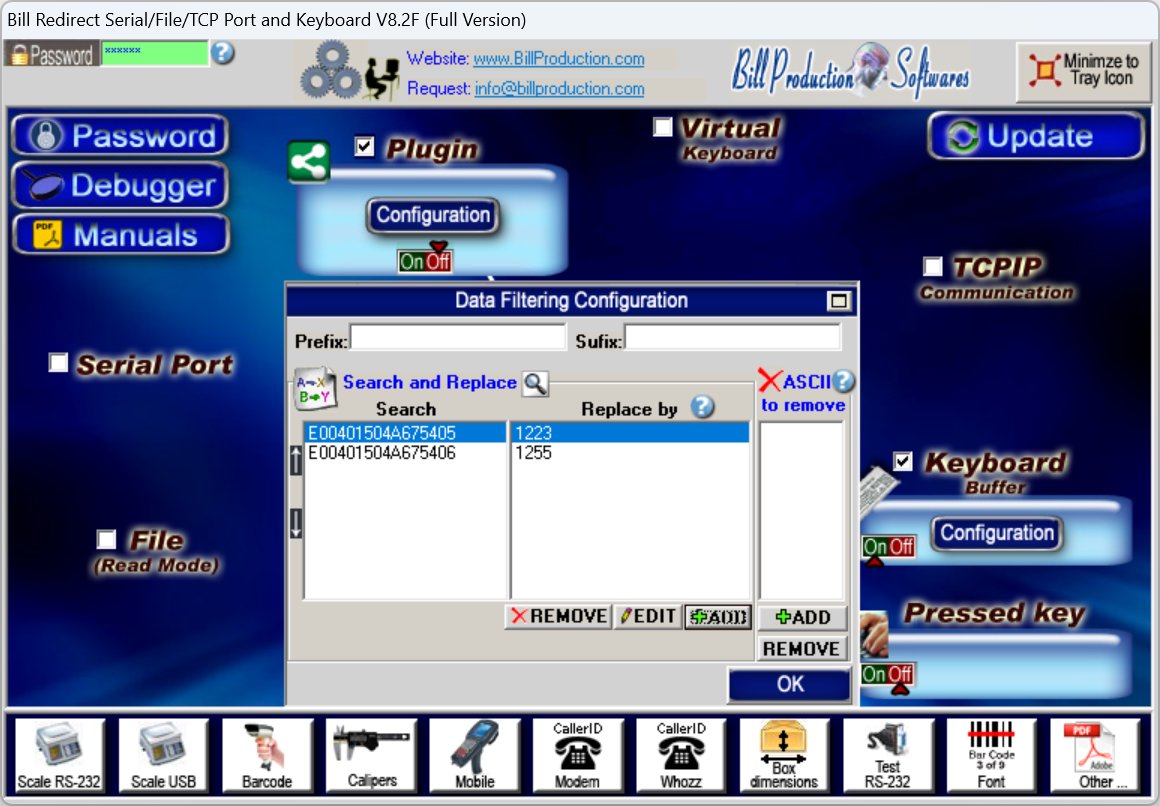
In Bill Redirect, open the Data Filtering Configuration. In the Search and Replace section, click ADD and create one line per employee card:
Search = the card number sent by the reader (e.g. E00401504A675405)
Replace by = the employee number (e.g. 1223)
Click OK, then Save Configuration.
Each line maps one card serial number to one employee number. Scan a new card with the Debugger open to see its exact number, then add the line.
| Search (card number) | Replace by (employee #) |
|---|---|
| E00401504A675405 | 1223 |
| E00401504A675406 | 1255 |
| E00401504A675407 | 1278 |
| E00401504A675408 | 1301 |
When employee 1223 presents their badge on the WAVE ID® reader, the application receives 1223 — not the raw card serial. The translation is instant and invisible to the user.
Several Bill Redirect installations on different computers can use the same configuration directory over the network. Maintain the employee card table once — every workstation stays up to date.
By default, Bill Redirect saves its configuration — including the Search and Replace card table — in:
C:\BillProduction.CFG\
Create the file BPCFGDIR.TXT in the same directory as the application's .exe, or directly in C:\. This file contains the desired configuration directory, for example:
\\SERVER\BillRedirect\Config\
Point several Bill Redirect installations to the same network directory. When the card table is changed on one computer, all the other computers synchronize automatically within the next 5 seconds. Add a new employee card once — every time clock and workstation knows it immediately.
Any rfIDEAS reader in USB keyboard emulation mode works. Other brands of USB HID proximity and RFID readers are also compatible.
The classic desktop reader. Multi-frequency 125 kHz + 13.56 MHz — reads virtually every proximity and contactless card on the market.
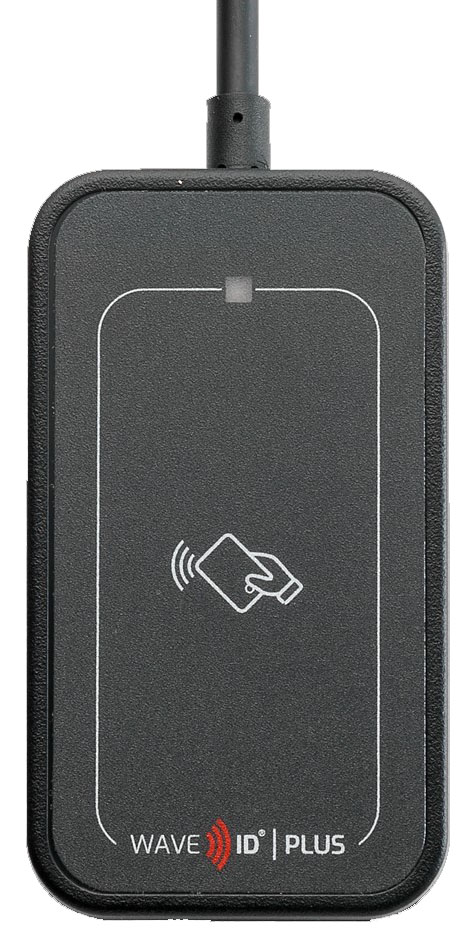
Compact version with the same multi-frequency engine. Ideal for space-constrained workstations, kiosks and point of sale counters.
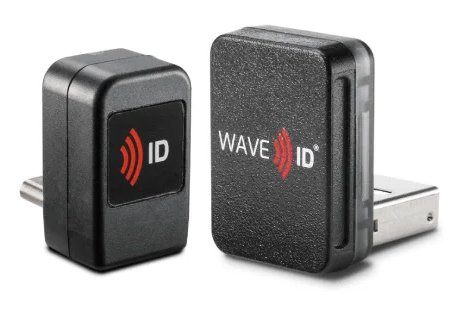
Ultra-compact USB plug format — virtually invisible once plugged in. Perfect for laptops, tablets and shared mobile workstations.
After translation, the employee number is typed using keyboard emulation — compatible with time clocks, ERP systems, web browsers, Microsoft Excel and any application that accepts keyboard input. The result can also be routed to TCP or a file.
The Keyboard Wedge Capture plugin is free. You pay for the Bill Redirect engine — one license per computer.
Bill Redirect is licensed per Windows machine. The Keyboard Wedge Capture plugin is free and included. Try the full software before you buy.
Buy now →A USB proximity reader like the rfIDEAS WAVE ID® sends the raw card serial number — something like E00401504A675405 — as keyboard input. Your time clock, ERP or access application usually expects the internal employee number instead, like 1223. Bill Redirect intercepts the raw card number before it reaches the application and replaces it using a Search and Replace lookup table.
Any rfIDEAS reader that operates in USB keyboard emulation mode: WAVE ID® Plus, WAVE ID® Plus Mini, WAVE ID® Nano, WAVE ID® Solo and similar models. The Keyboard Wedge Capture plugin intercepts any USB HID keyboard device, so other brands of proximity and RFID readers work too.
Open Bill Redirect, click the Data Filtering Configuration, then in the Search and Replace section click ADD. Scan the new card with the Debugger open to see its number, enter that number in the Search field and the employee number in the Replace by field, then click OK and Save Configuration.
The default configuration password is: www.billproduction.com
Yes. After translation, the employee number is sent using keyboard emulation, so it works with any Windows application that accepts keyboard input — time clocks, ERP systems, web browsers, Microsoft Excel, point of sale software and more. The result can also be routed to TCP, a file or Microsoft Excel directly.
By default the configuration is saved in C:\BillProduction.CFG\. To change this directory, create the file BPCFGDIR.TXT in the same directory as the application's .exe (or directly in C:\) — this file contains the desired configuration directory. Several Bill Redirect installations on different computers can use the same network directory: when the configuration is changed on one computer, the others synchronize automatically within the next 5 seconds. See the multi-computer section.
The Keyboard Wedge Capture plugin is free. You need a Bill Redirect license: $45 CAD per computer. A full-featured trial version is available before you buy.